ChatGPT Photo Editing Prompts: Tested Examples for Better Results
Tested ChatGPT photo editing prompts for backgrounds, headshots, restorations, and product photos: what worked, what failed, and how to fix it.
PromptsBuddy
Editorial
ChatGPT photo editing prompts can help you remove unwanted objects, change backgrounds, improve lighting, and turn ordinary photos into professional-looking images. But getting the result you want isn't always as simple as typing "improve this photo."
You might ask ChatGPT to change the background, only to find that it has also changed your face, clothing, or the original lighting. The difference often depends on how clearly you describe the edit and what you want to keep unchanged.
In this guide, you'll find tested ChatGPT photo editing prompts for portraits, product photos, background changes, object removal, and more. We'll look at what worked, where the prompts struggled, and how you can adjust them to get better results without endless trial and error.
How to Edit Photos Using ChatGPT
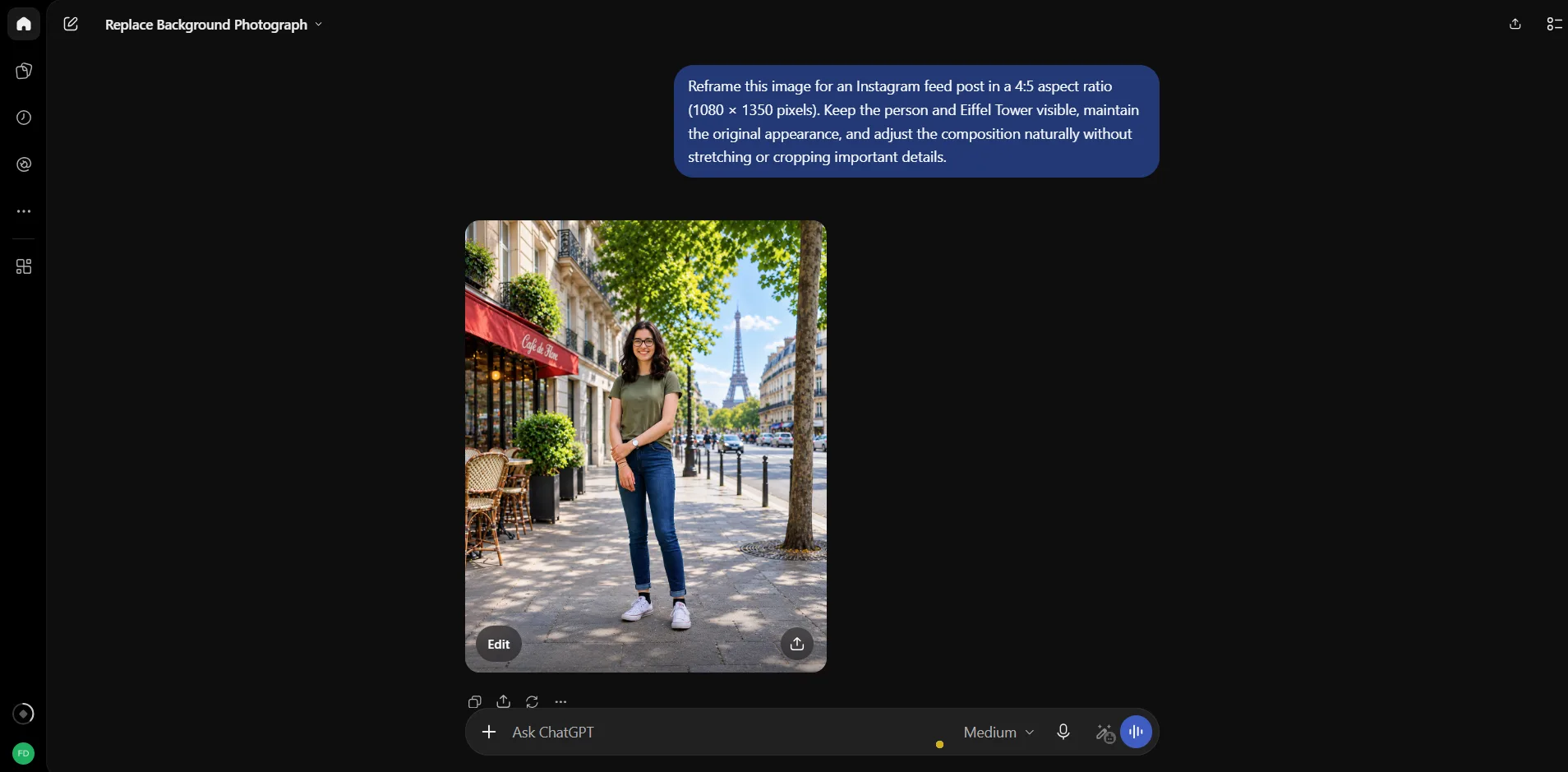
ChatGPT lets you edit existing photos using simple text instructions. Instead of manually adjusting every detail, you can upload an image, describe the changes you want, and generate an edited version.
Here's how the process works:
Upload your photo: Open ChatGPT and attach the image you want to edit. Use a clear, high-quality photo for better results.
Describe the change: Tell ChatGPT exactly what to modify, such as removing an object, replacing the background, adjusting the lighting, or changing colors.
Specify what to preserve: Mention the details that should stay unchanged, such as facial features, clothing, product labels, or the original composition.
Select a specific area: If you only want to change part of the image, use ChatGPT's image editing selection tool to identify the area. This helps focus the edit, although changes may extend beyond the selection.
Set the visual style: Describe the appearance you want, such as natural lighting, realistic textures, soft shadows, or a particular color tone.
Choose the image format: Specify the preferred aspect ratio, orientation, or framing, especially when preparing images for websites, social media, or product listings.
Review and refine: Check the edited image for unwanted changes. If something looks incorrect, use a follow-up prompt to adjust that specific detail.
Save the final image: Once you're satisfied with the result, download the edited photo. Keep the original image so you can compare changes or start again if needed.
ChatGPT supports targeted edits and multiple rounds of refinement, but results may vary depending on the image and instructions. Clear prompts and careful review help you get closer to the intended result.
Elements of an Effective Photo Editing Prompt
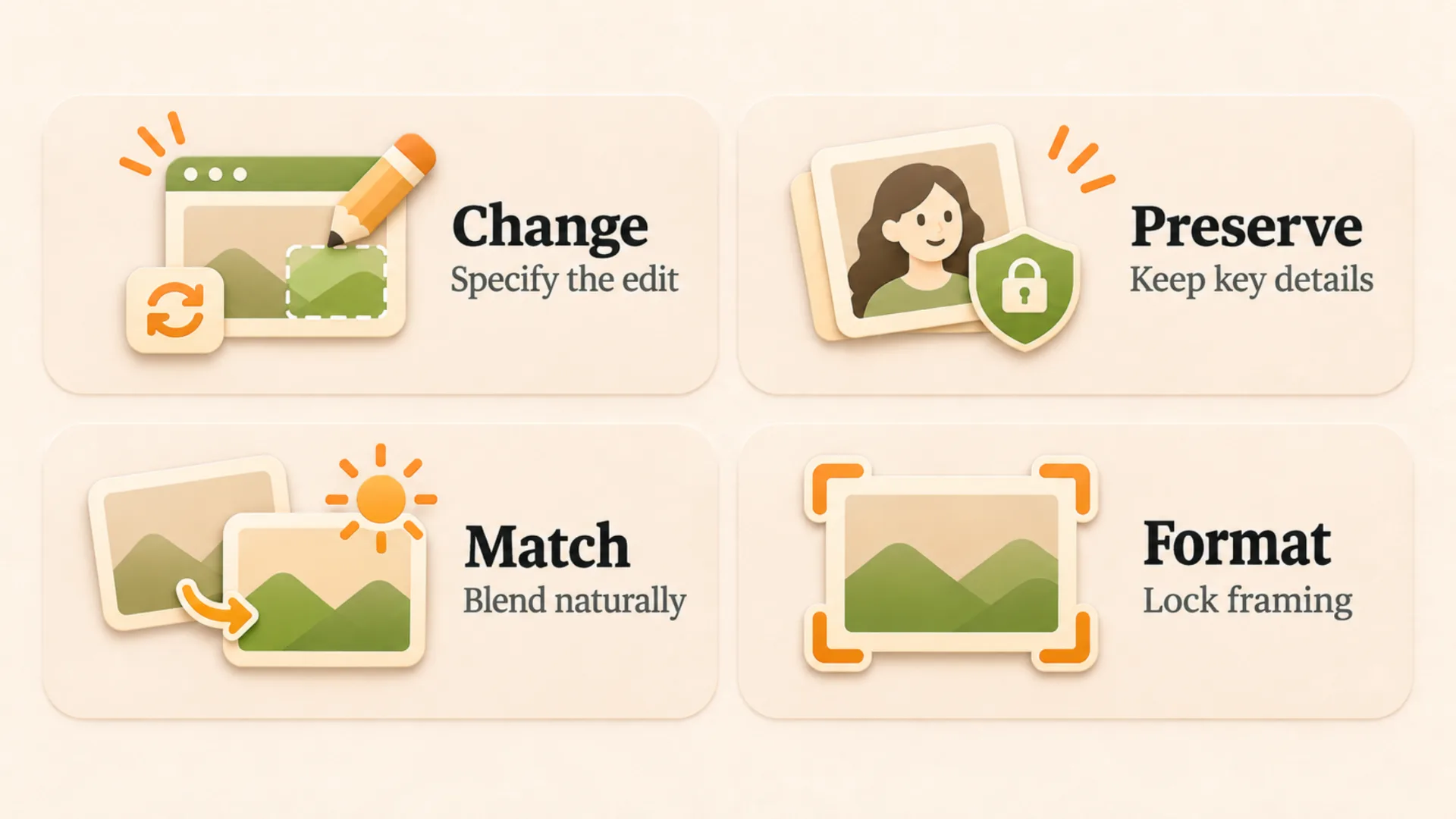
A good photo editing prompt tells ChatGPT exactly what to change without leaving the rest of the image open to interpretation. For example, asking it to "make this photo look professional" could change the lighting, background, facial features, or even the composition.
A more reliable approach is to use four instructions: Change + Preserve + Match + Format.
1. Change: Specify the Edit
Describe the exact adjustment you want. Avoid broad requests such as "make it better" or "improve the photo."
Example: Replace the busy background with a clean, modern office featuring neutral walls and soft natural light.
2. Preserve: Protect Important Details
Specify which parts of the original photo must remain unchanged. This is especially important when editing portraits, product images, or photographs containing text.
Example: Keep the person's facial features, expression, hairstyle, clothing, and body position unchanged.
3. Match: Keep the Edit Natural
A realistic edit should fit the original photograph. Specify how the new elements should match the lighting, perspective, shadows, and overall appearance.
Example: Match the original lighting direction, camera angle, depth of field, and shadows so the subject blends naturally into the new background.
4. Format: Control the Final Image
Specify the framing, aspect ratio, and output requirements. This helps prevent unwanted cropping or changes to the image layout.
Example: Maintain the original aspect ratio, camera framing, and image orientation. Do not crop or reposition the subject.
These four elements make photo editing prompts clearer and help ChatGPT focus on the intended changes. While results may still vary, specific instructions reduce unwanted edits and make it easier to refine the image.
With that framework in mind, I tested it on real photos, and here's what actually worked.
Tested ChatGPT Photo Editing Prompts
I ran each of these on real photos, not stock images, and tweaked the wording until the results held up. Here's what worked, what to watch for, and the prompt you can copy and adjust.
1. Removing or Replacing a Background
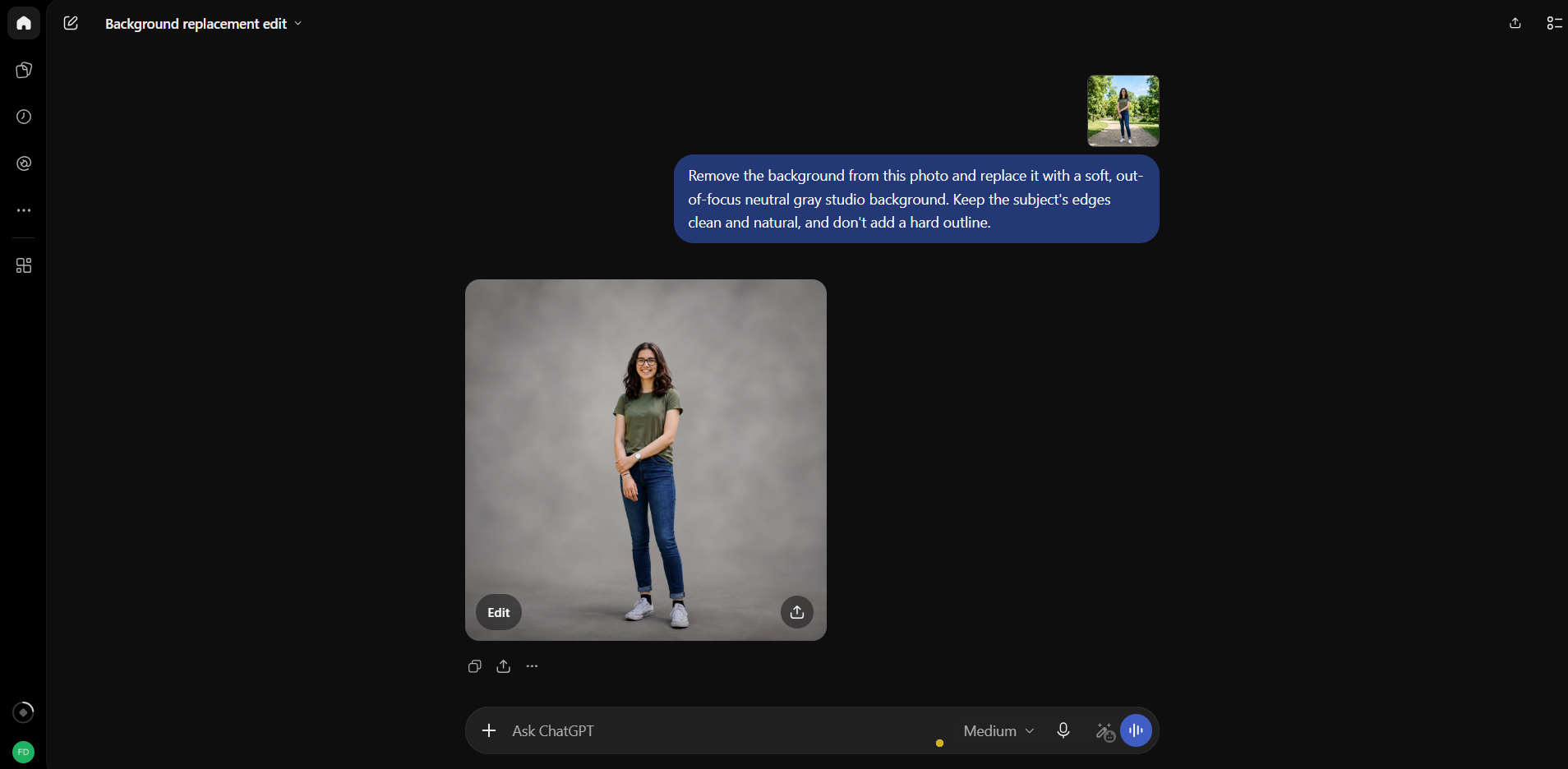
This method is the one most people try first, and it's genuinely solid.
Prompt:
"Remove the background from this photo and replace it with a soft, out-of-focus neutral gray studio background. Keep the subject's edges clean and natural, and don't add a hard outline."
The important part is describing the background you want rather than simply asking ChatGPT to replace it. Mentioning a studio setting and clean edges helps avoid the artificial cut-out appearance that sometimes makes edited photos look unrealistic.
However, fine details such as loose hair strands, fur, or lace can still be difficult to preserve. ChatGPT may smooth these areas or remove small details while editing. If your subject has complex edges, check them closely and expect to make a few additional adjustments.
2. Turning a Casual Photo Into a Professional Headshot
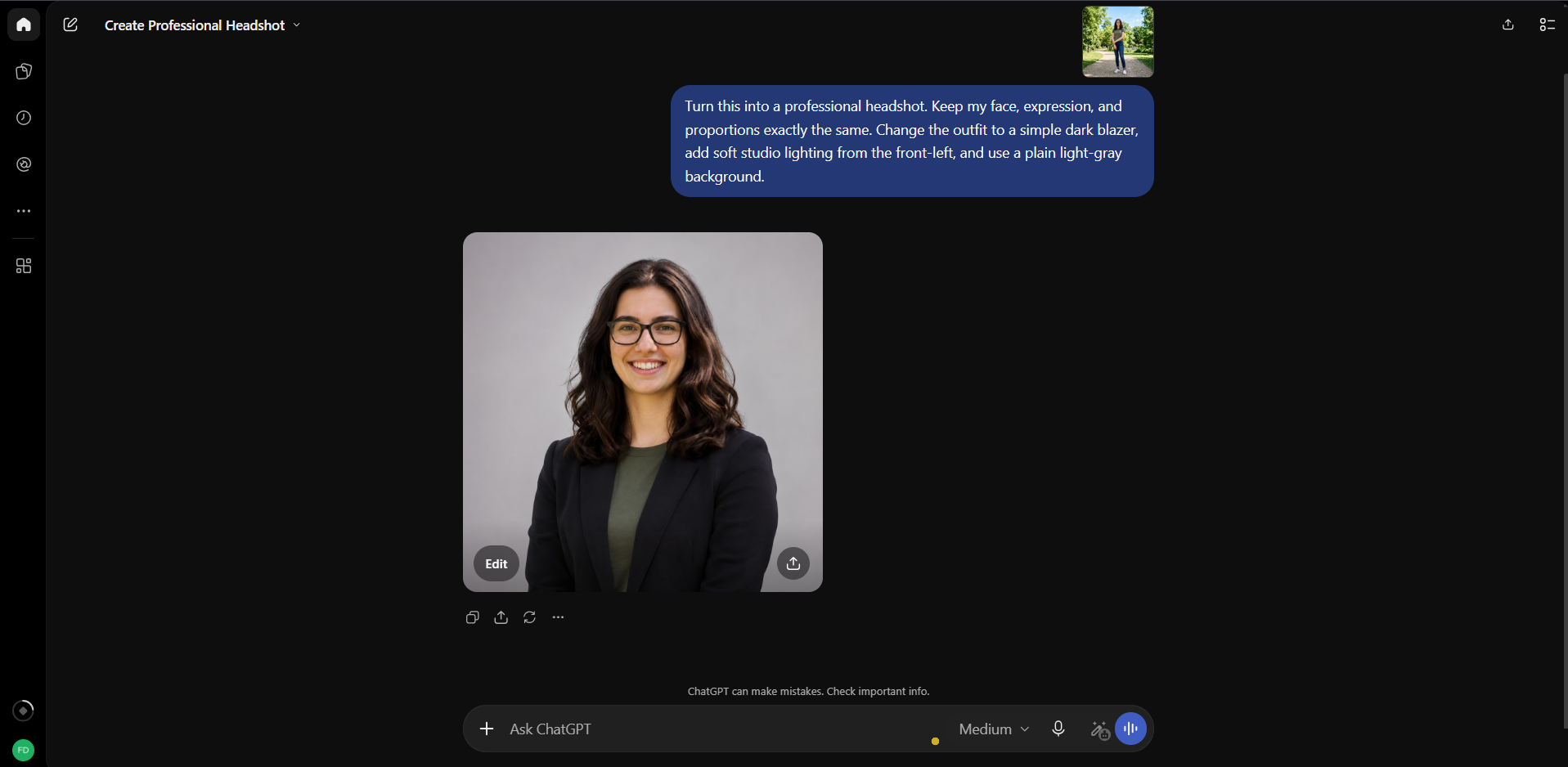
This one surprised me. It's better than I expected for LinkedIn-style shots.
Prompt:
"Turn this into a professional headshot. Keep my face, expression, and proportions exactly the same. Change the outfit to a simple dark blazer, add soft studio lighting from the front-left, and use a plain light-gray background."
The most important part of this prompt is telling ChatGPT to preserve the person's face, expression, and proportions. Without these instructions, it may smooth facial features, change the jawline, or make other subtle adjustments that affect the person's appearance. Specifying the outfit, lighting direction, and background also helps create a more consistent professional look.
However, preserving facial details is not always perfect. In a couple of test runs, ChatGPT made the skin tone slightly warmer than the original. If you're preparing a photo for a company profile or professional directory, compare the result with the source image to make sure the person still looks like themselves.
3. Restoring an Old or Damaged Photo
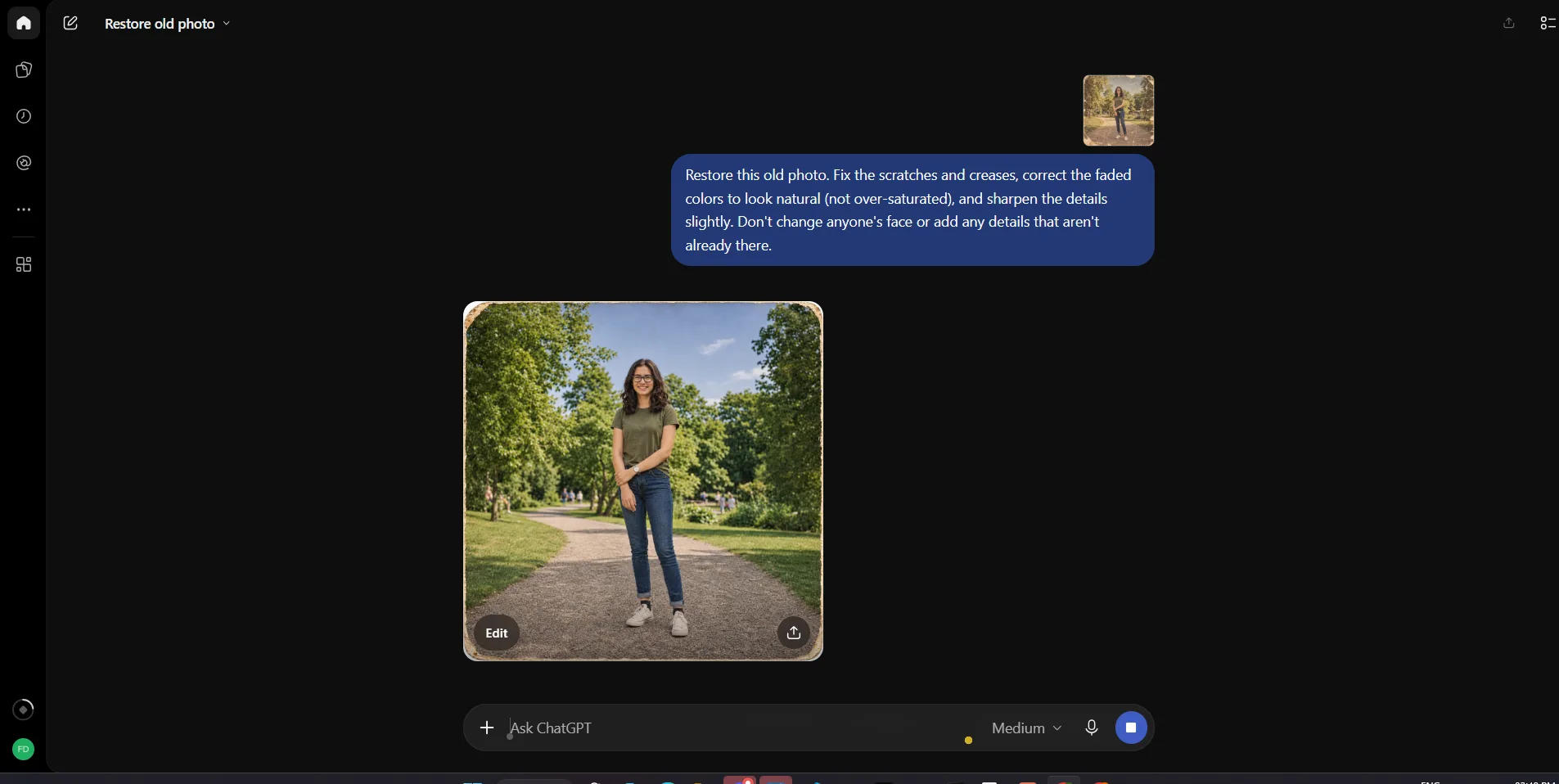
This is where ChatGPT genuinely earns its keep, especially for family photos that have faded or torn.
Prompt:
"Restore this old photo. Fix the scratches and creases, correct the faded colors to look natural (not over-saturated), and sharpen the details slightly. Don't change anyone's face or add any details that aren't already there."
The instruction to avoid adding new details is particularly important when restoring old photographs. ChatGPT can repair visible scratches, improve faded colors, and sharpen certain areas, but it may also fill damaged sections with details that look realistic without matching the original. Being specific about preserving faces and existing details helps reduce unwanted changes.
For example, it handled scratches and faded colors well in a 1990s photograph. However, when part of another photo was missing, ChatGPT generated a convincing replacement based on what it expected to see. The result looked natural, but it was not necessarily accurate. For valuable family photographs, always check restored details carefully.
4. Changing Outfits or Colors Without Changing the Person
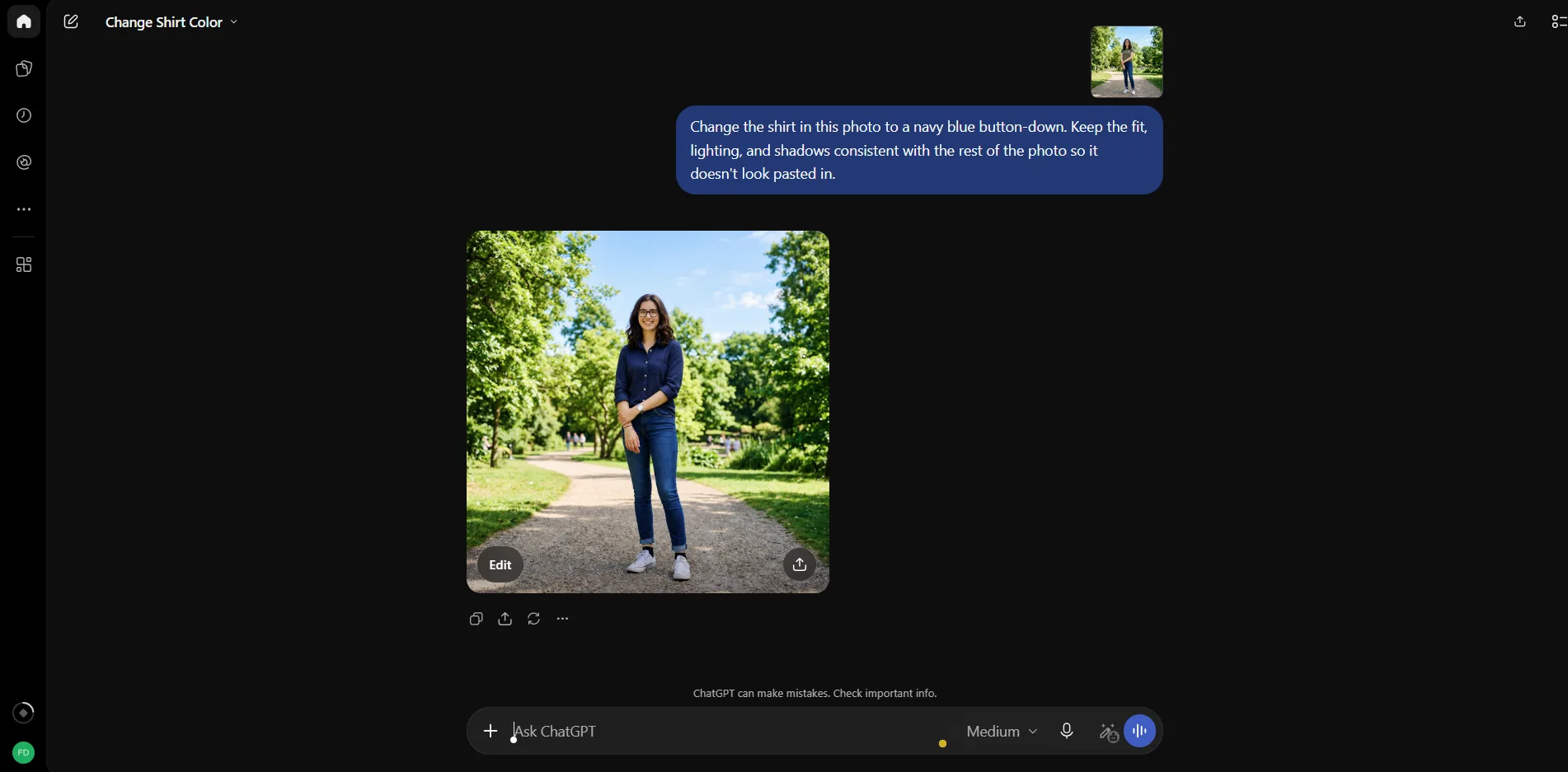
Useful for product mockups, social content, or just trying out a look before committing.
Prompt:
"Change the shirt in this photo to a navy blue button-down. Keep the fit, lighting, and shadows consistent with the rest of the photo so it doesn't look pasted in."
Simply asking ChatGPT to change an outfit may produce clothing that looks disconnected from the original photograph. Specifying the garment type, color, lighting, and shadows helps the new clothing fit more naturally. These details are especially important when changing the fabric or style rather than just adjusting its color.
Simple color changes generally produce more consistent results because the original garment shape remains the same. Replacing a T-shirt with a blazer or another completely different garment can be more challenging. ChatGPT may struggle with folds, fit, or how the fabric falls on the body, so additional instructions may be needed to correct these details.
5. Turning a Photo Into an Illustration or Art Style
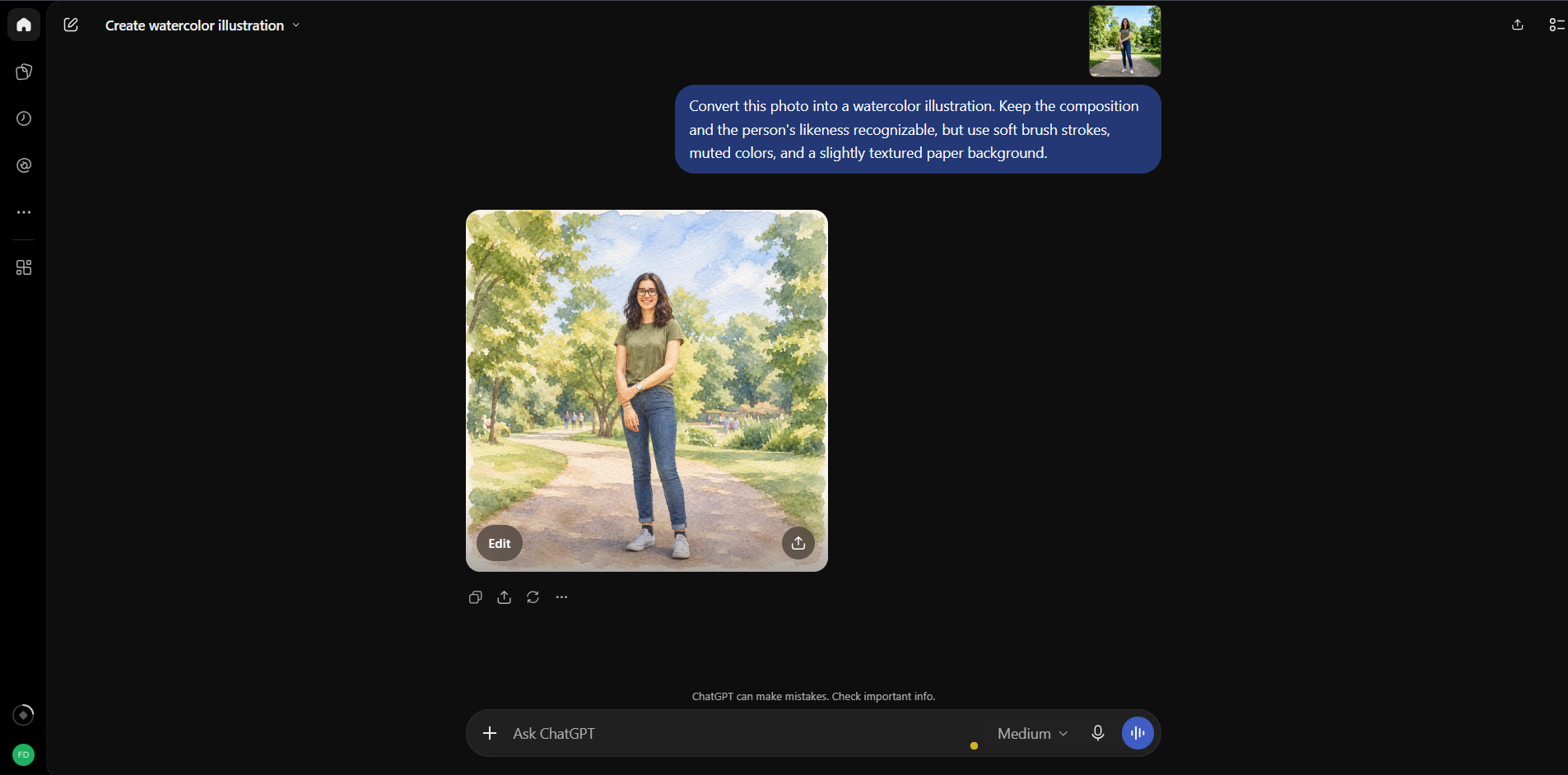
This is the fun one, and also the most reliable category overall.
Prompt:
"Convert this photo into a watercolor illustration. Keep the composition and the person's likeness recognizable, but use soft brush strokes, muted colors, and a slightly textured paper background."
This prompt works by describing both the artistic style and the details that should remain recognizable. Mentioning soft brush strokes, muted colors, and paper texture gives ChatGPT a clearer visual direction than simply asking for a watercolor effect. You can also replace "watercolor" with "pencil sketch," "pixel art," "oil painting," or "anime style" to create different interpretations of the same photograph.
However, converting a photo into an illustration can still change the subject's appearance. Facial proportions, expressions, and smaller details may look different because the model is recreating the image in another style. If keeping the person recognizable matters, include that requirement in the prompt and review the result against the original.
6. Cleaning Up a Product Photo for Selling Online
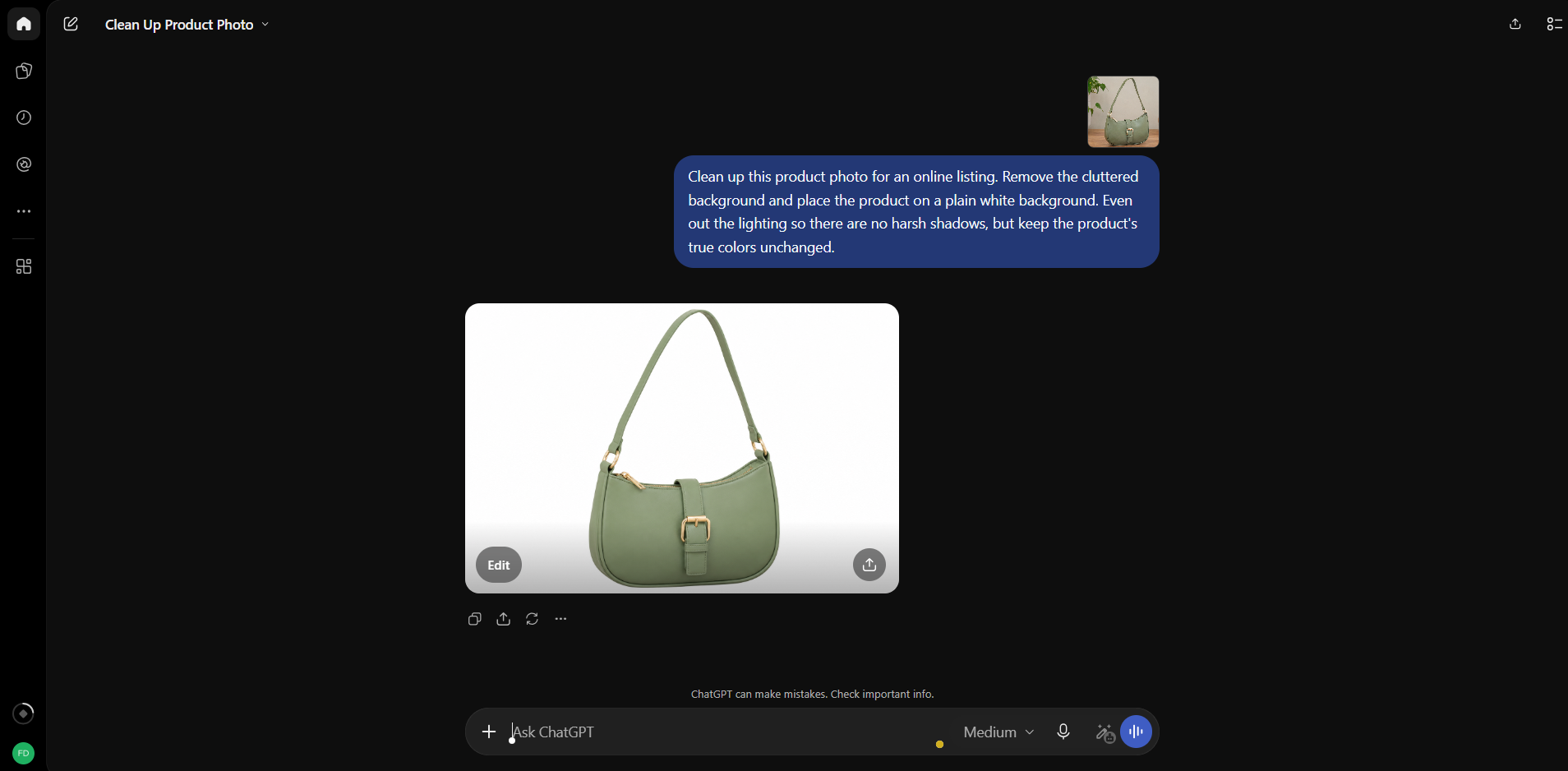
If you sell on Etsy, eBay, or Instagram, this one's worth bookmarking.
Prompt:
"Clean up this product photo for an online listing. Remove the cluttered background and place the product on a plain white background. Even out the lighting so there are no harsh shadows, but keep the product's true colors unchanged."
The most useful instruction here is to keep the product's original colors unchanged. ChatGPT may otherwise brighten the image or adjust its color temperature to make the product look more attractive. Asking for a plain white background and balanced lighting also helps remove distractions while keeping the focus on the item being sold.
However, product accuracy matters more than making the photo visually appealing. Even small changes to color, shape, packaging, or labels can misrepresent what buyers will receive. Before using an AI-edited product image in an online listing, compare it with the original to confirm that important details remain accurate.
7. Removing an Unwanted Object From a Photo
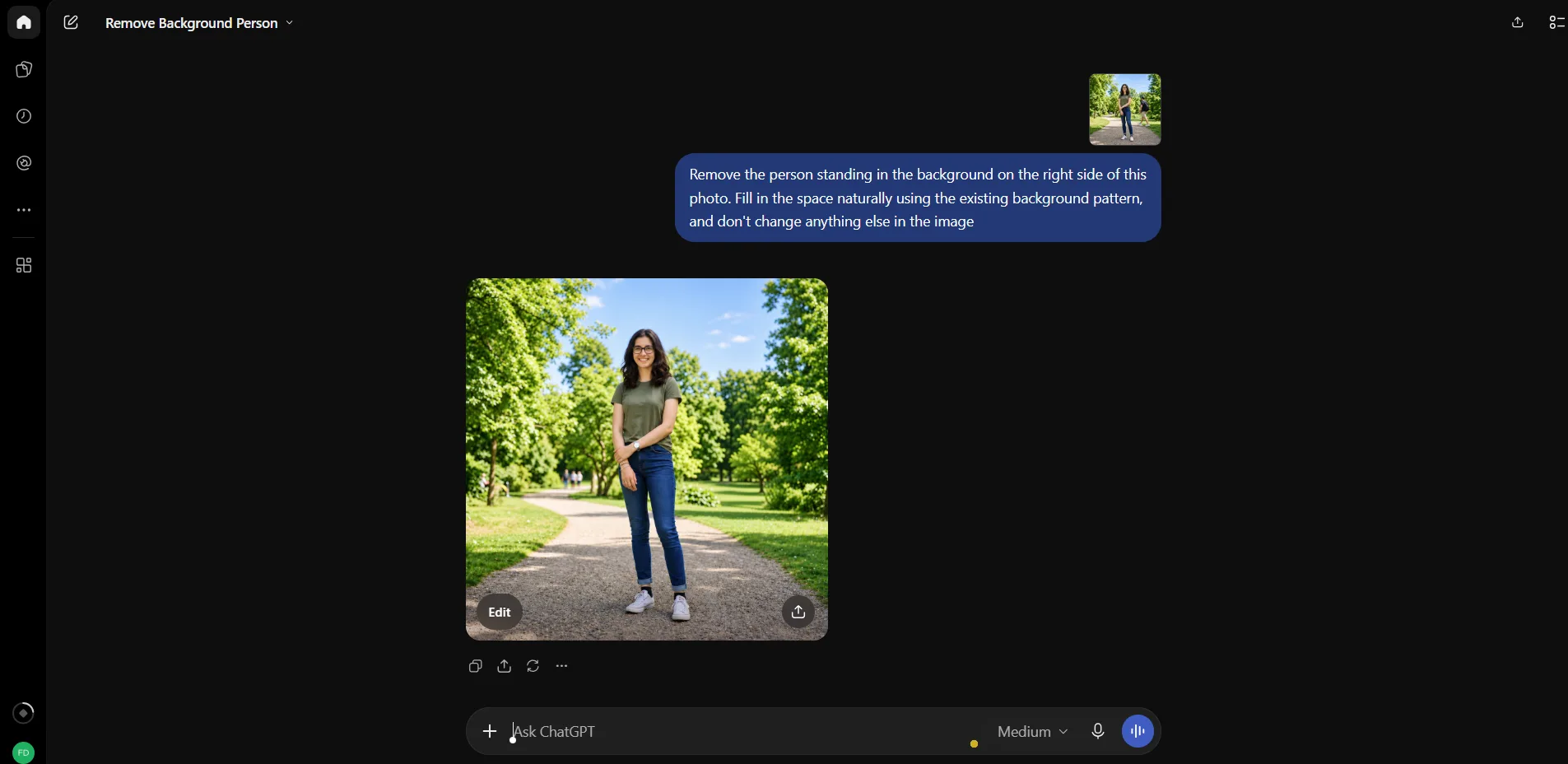
This is the classic fix for a "photobomber in the background."
Prompt:
"Remove the person standing in the background on the right side of this photo. Fill in the space naturally using the existing background pattern, and don't change anything else in the image."
The important detail in this prompt is identifying exactly which person or object should be removed and where it appears in the image. This helps ChatGPT focus on the intended area rather than making unnecessary changes elsewhere. Asking it to fill the empty space with the existing background also helps maintain a more natural appearance.
However, the complexity of the background affects the final result. Plain walls, open skies, and blurred scenery are usually easier to reconstruct, while patterns, buildings, and overlapping people can create problems. In busier scenes, ChatGPT may leave slight smudges or blurry patches where the removed object was located, so check those areas before using the edited photo.
Common Problems with Photo Editing Prompts
Not every photo editing prompt works well on the first try. Often, the issue comes from unclear instructions rather than the editing tool itself. Knowing why a prompt fails helps you correct it faster and get better results with fewer retries.
Too Many Changes at Once
A prompt that asks for several major edits at the same time gives ChatGPT too much to handle in one step. If you ask it to change the background, lighting, clothes, face, and pose all at once, the result is more likely to include unwanted changes. It is usually better to start with one primary edit, review the result, and then make smaller follow-up changes if needed.
Important Details Were Not Locked
Many failed edits happen because the prompt explains what to change but does not explain what should stay the same. For example, saying "change the background" does not protect the person's face, pose, clothing, crop, or lighting. If certain details matter, mention them directly to reduce unwanted changes and keep the final image closer to the original.
The Instruction Is Too Vague
Vague prompts leave too much room for interpretation. A request like "make it professional" could lead to different outcomes depending on how ChatGPT interprets the word. A clearer instruction would be: "Use soft window light from the left, neutral colors, natural skin texture, and a plain light-gray background." Specific details help ChatGPT understand the intended appearance.
You Keep Editing the Edit
Each new round of editing can move the image further away from the source. This is especially risky when working on portraits, product images, or visuals where accuracy matters. Compare each new version with the original photo instead of only reviewing the latest edit. If important details start changing, return to the source image and try again with a clearer prompt.
The Source Photo Is Weak
A poor-quality image limits what ChatGPT can do. If the original photo is blurry, low-resolution, badly lit, or missing visible details, the edited result may look unnatural or inaccurate. AI can improve some visual issues, but it cannot reliably recover exact details that were never visible in the original. Starting with a clear, high-quality image generally produces better results.
The Lighting and Perspective Don't Match
An edited photo can look artificial when newly added elements do not match the original lighting or camera angle. For example, replacing an outdoor background with an indoor setting may create unnatural shadows or make the subject look out of place. Specify the direction of light, shadow intensity, perspective, and depth of field to help the new elements blend naturally with the original image.
The Image Format Was Not Specified
ChatGPT may change the framing, crop important details, or reposition the subject if the prompt does not include clear format instructions. This can be a problem when editing photos for social media posts, website banners, or product listings that require specific dimensions. Mention the preferred aspect ratio, orientation, and framing, and clearly state whether the original composition should remain unchanged.
These problems are common, but you can reduce many of them with clearer instructions, fewer changes at once, and specific details about what should remain unchanged.
Best Practices for Better Photo Edits
Getting better results from ChatGPT photo editing depends on clear instructions and careful review. A few simple practices can help reduce unwanted changes and improve consistency.
Use a high-quality source image: Start with a clear, well-lit photo that shows important details accurately. Blurry, heavily compressed, or low-resolution images can make it harder for ChatGPT to preserve textures, facial features, and object boundaries. A better source image gives the model more visual information to work with.
Make one major change at a time: Focus on a single adjustment, such as replacing the background, improving lighting, or removing an unwanted object. Requesting several major changes together increases the chances of unexpected results. Complete the primary edit first, review it, and then make smaller adjustments as needed.
Specify what should remain unchanged: Clearly identify the elements ChatGPT must preserve, including facial features, expressions, clothing, product labels, and overall composition. For example, when changing a portrait background, mention that the person's identity, hairstyle, and pose should stay the same. This helps prevent unnecessary modifications.
Use specific visual descriptions: Replace vague instructions like "make it beautiful" or "give it a professional look" with clear visual details. Describe the lighting direction, color temperature, background, shadows, and textures you want. Specific descriptions give ChatGPT a clearer idea of the intended result.
Mention the aspect ratio and framing: Specify whether the final image should be square, portrait, or landscape, especially when editing photos for websites, social media, or product listings. If you want to keep the original composition, explicitly ask ChatGPT to preserve the crop, camera angle, and subject placement.
Compare the result with the original: Review the edited photo carefully instead of judging it only by its overall appearance. Look for unexpected changes in facial features, object shapes, clothing, colors, text, or background details. Comparing both images side by side helps identify mistakes that might otherwise go unnoticed.
Use short follow-up prompts: If the first result is close to what you want, avoid rewriting the entire prompt. Instead, describe the specific issue, such as "reduce the background blur" or "restore the original skin texture." Small, focused corrections make it easier to refine the image without introducing additional changes.
Restart when the image changes too much: Repeated editing can gradually alter the original photo, especially when changing multiple visual elements. If important details begin to look different, return to the source image and write a more precise prompt. Starting again can be more effective than trying to correct several unwanted changes.
The key is to be specific without making the prompt unnecessarily complicated. Clear instructions, smaller adjustments, and regular comparisons with the original image can help produce more consistent photo edits.
Conclusion
The best ChatGPT photo editing prompts are not necessarily the longest ones. They are the ones that clearly explain what to change, what to preserve, and how the final image should look. Even small details in your instructions can make a noticeable difference.
For background changes, portraits, product photos, and creative edits, ChatGPT is a useful starting point. However, tasks that require exact colors, facial accuracy, or detailed restoration may still need manual editing. Choose your approach based on how much precision the final image requires.
Start with one of the tested prompts, adjust it to your photo, and compare the result with the original. The goal is not simply to make an image look better but to make the changes you intended without losing the details that matter.